How to link your Steam account to AFK Hours, step by step
There are two ways to link an account: the QR code with the Steam app, or your login and password with a Steam Guard code. Here is exactly what to tap on your phone, screen by screen, and why Steam asks you questions along the way.
Key points
- Two ways: the QR code with the Steam app (recommended), or your login with a Steam Guard code.
- Steam may put the sign-in on hold because it comes from our servers in Germany: answer “Steam Client”, then “Other”.
- With the password, get the code from the app first: Steam then asks no questions.
- We keep an encrypted session token, never your password, and you can revoke it from Steam anytime.
In this guide
What you see on your phone
When you approve, Steam shows Falkenstein, Sachsen, DE. That is not where you are, and that is expected: the sign-in comes from our servers. If Steam asks for the closest location, pick that one.
A sign-in coming from a server surprises Steam: it puts it on hold and asks two questions. The answers below are the right ones, the sign-in really does come from us. The red box shows what to tap.
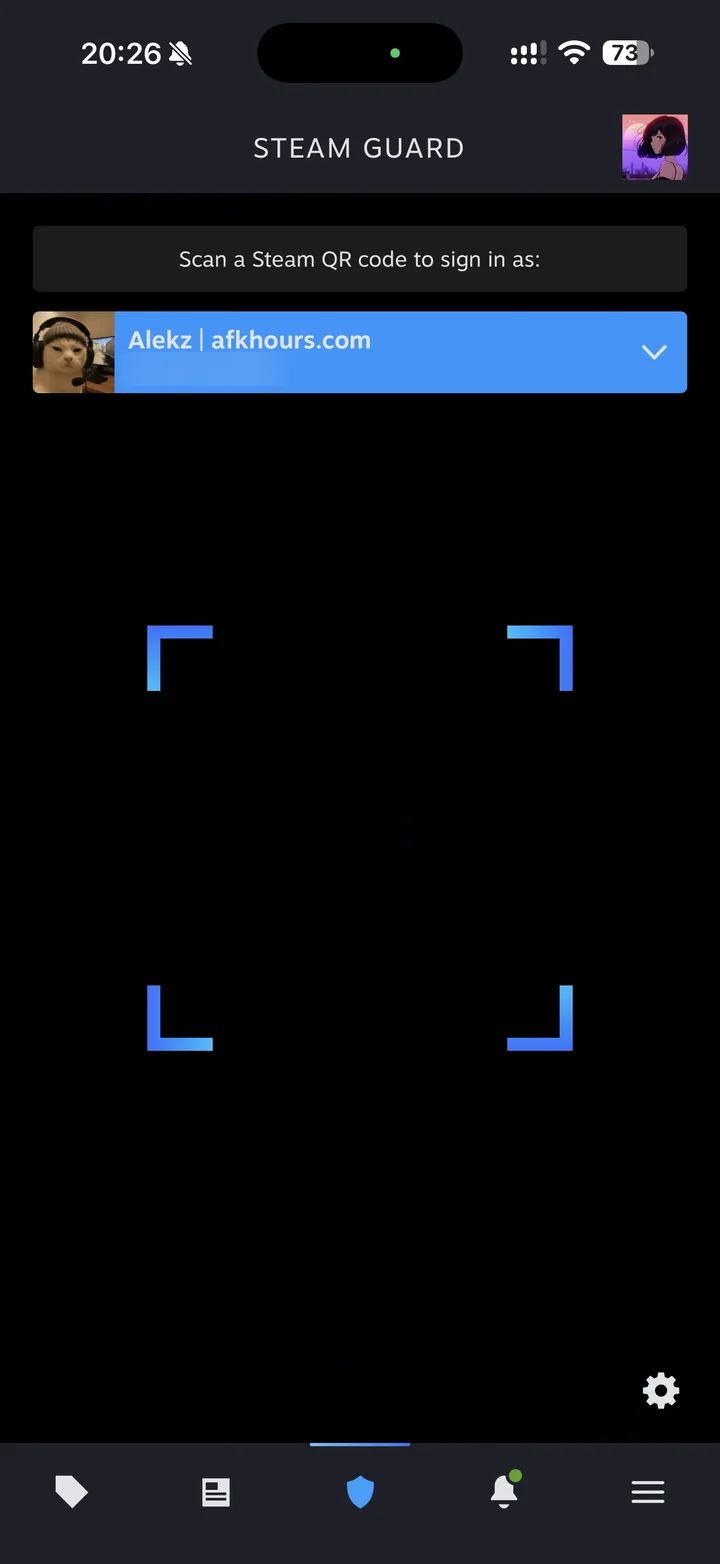 1Open the scanner
In the Steam app, tap the Steam Guard shield at the bottom: the scanner opens. Point it at the QR code shown on AFK Hours.
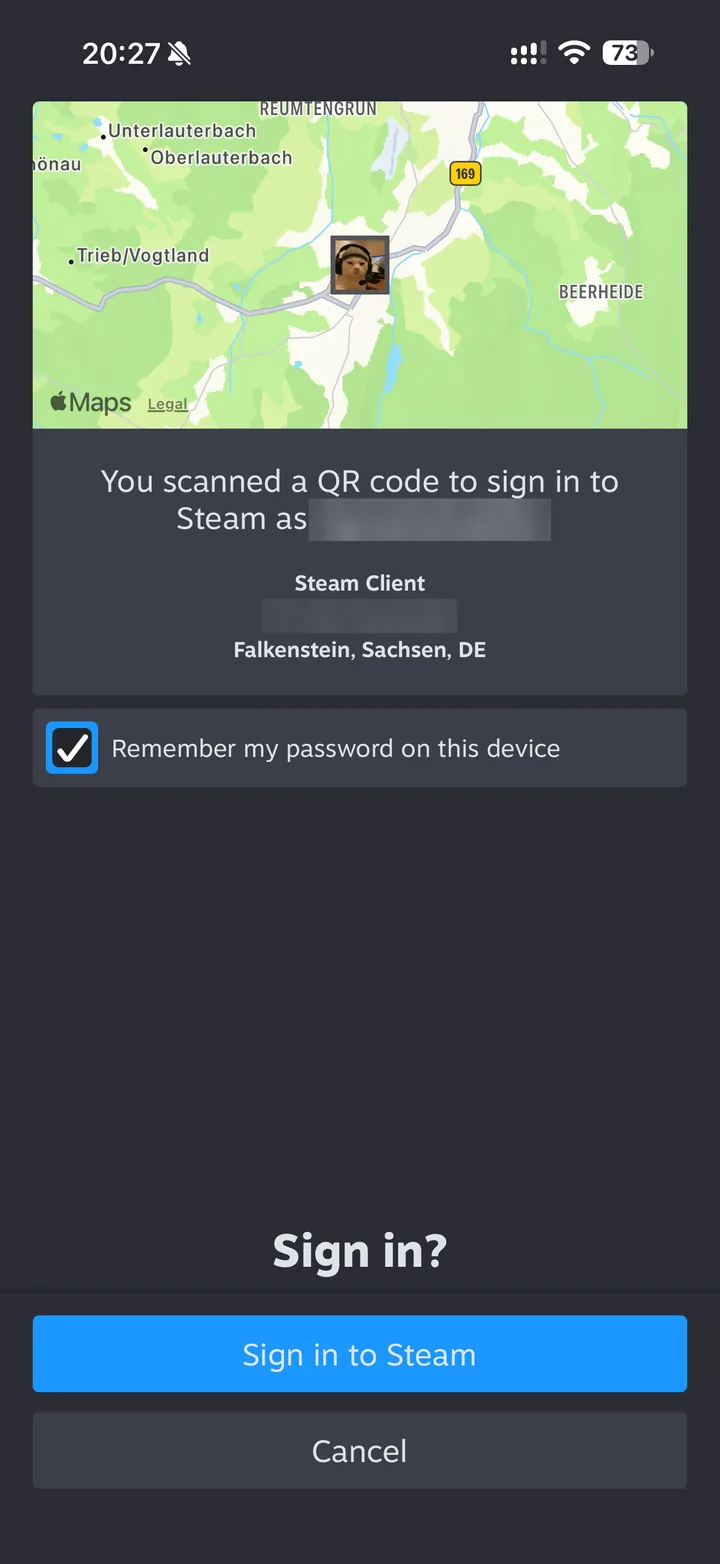 2Approve the sign-in
Steam shows where the sign-in comes from: Falkenstein, Sachsen, DE. That is our servers. Tap “Sign in to Steam”.
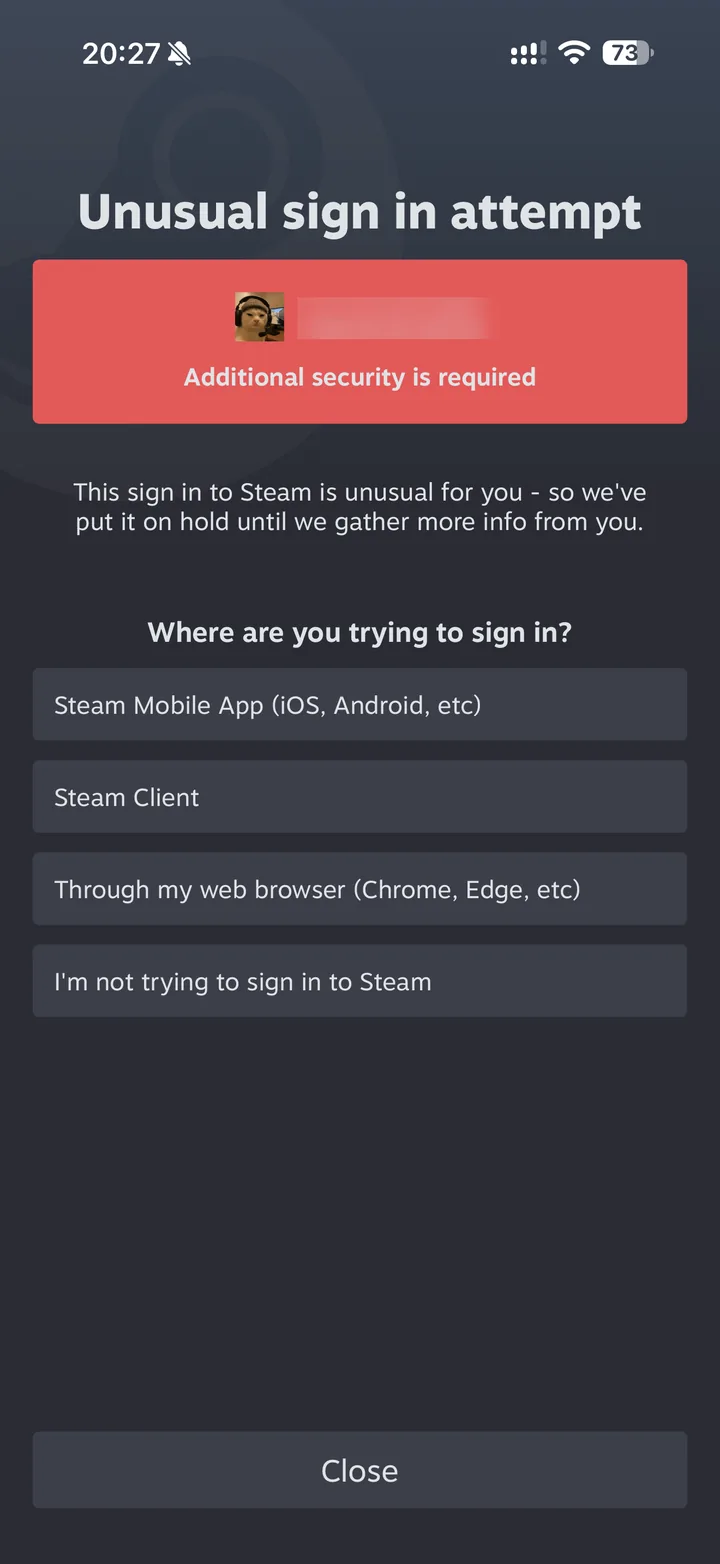 3Steam puts the sign-in on holdExpected: carry on
The “Unusual sign in attempt” screen appears because the sign-in comes from a server. At “Where are you trying to sign in?”, tap “Steam Client”.
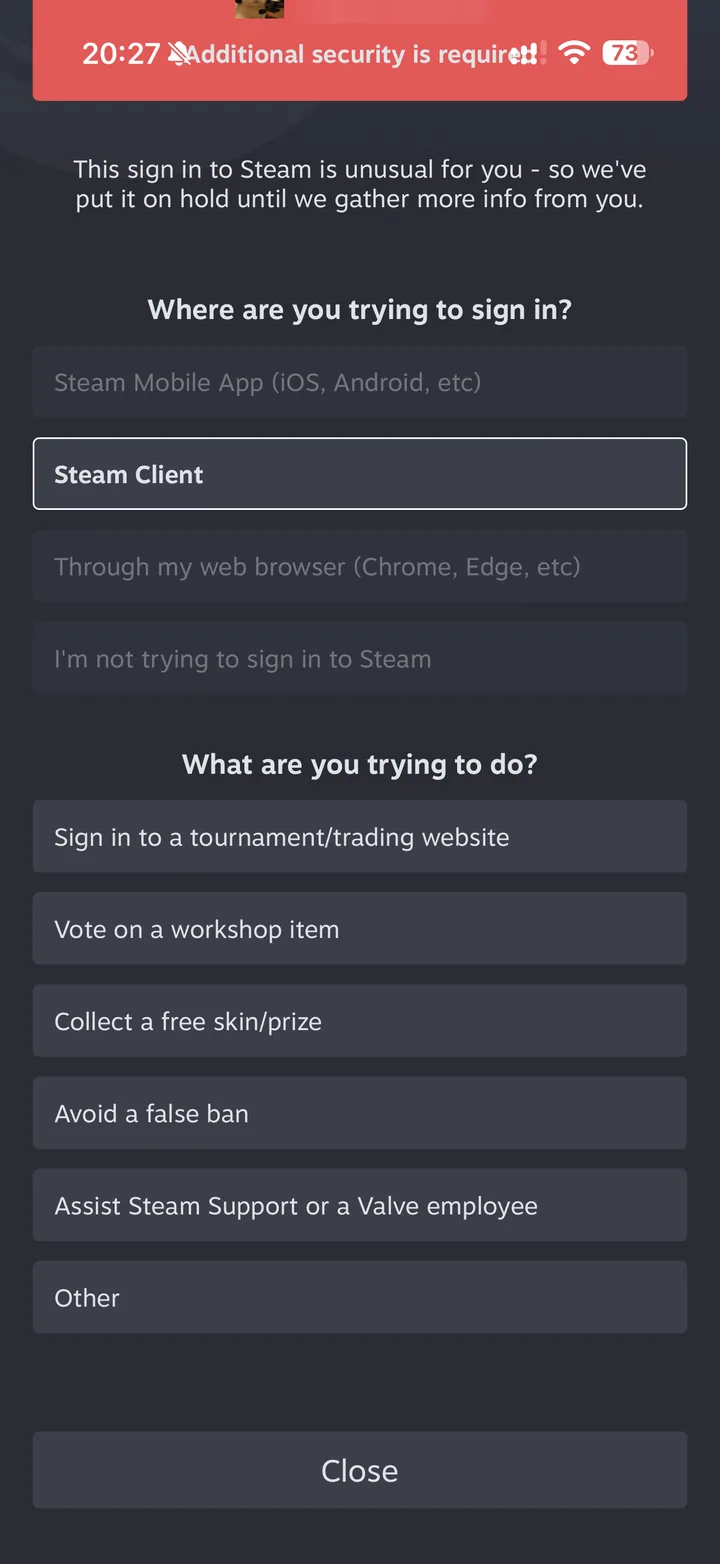 4What you are trying to do
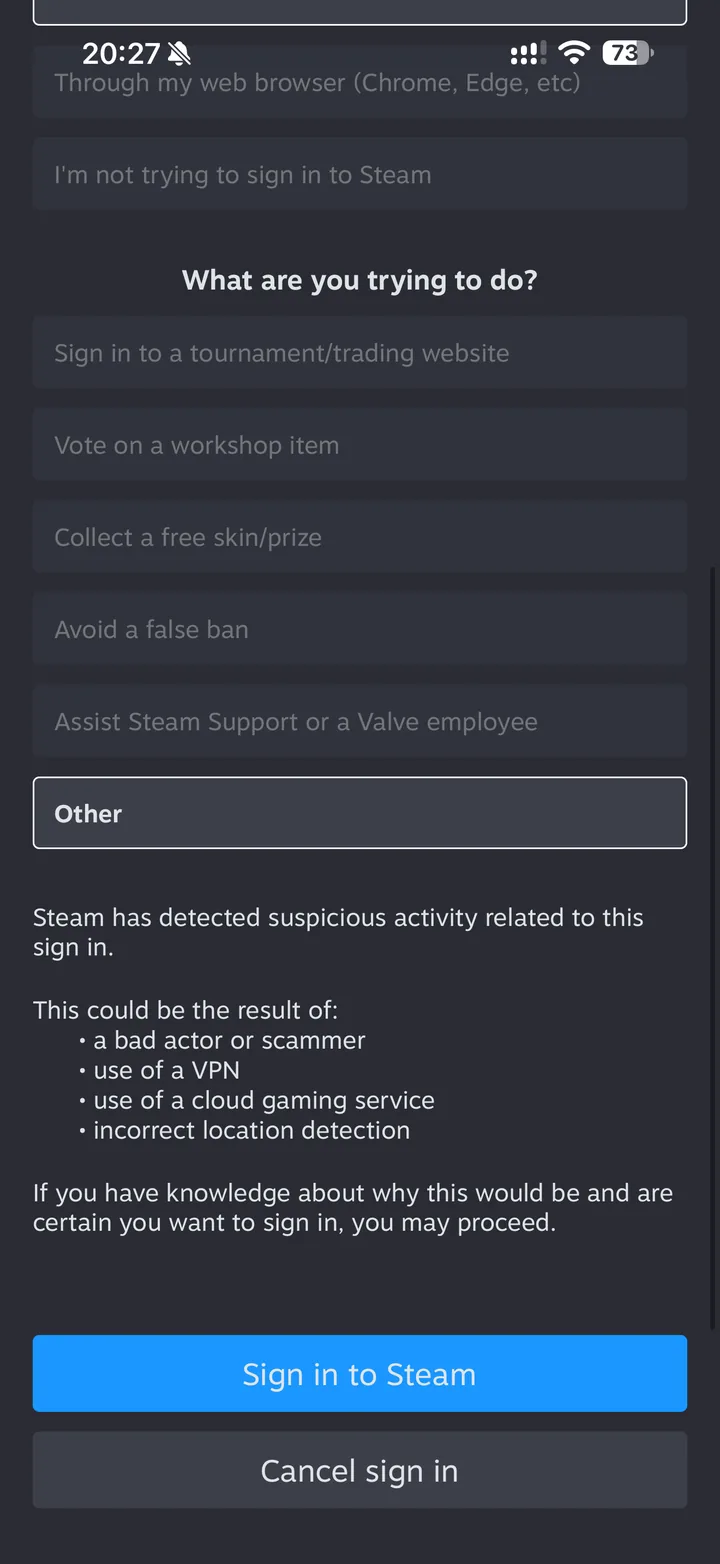
At “What are you trying to do?”, tap “Other”, at the bottom of the list.
 5Confirm
Steam explains why the sign-in looks suspicious to it. Tap “Sign in to Steam”: the account is linked and the AFK Hours window updates on its own.
Get the code from the app before you fill in the window: with it, Steam asks no questions. The red box shows what to tap.
- 1Open Steam Guard
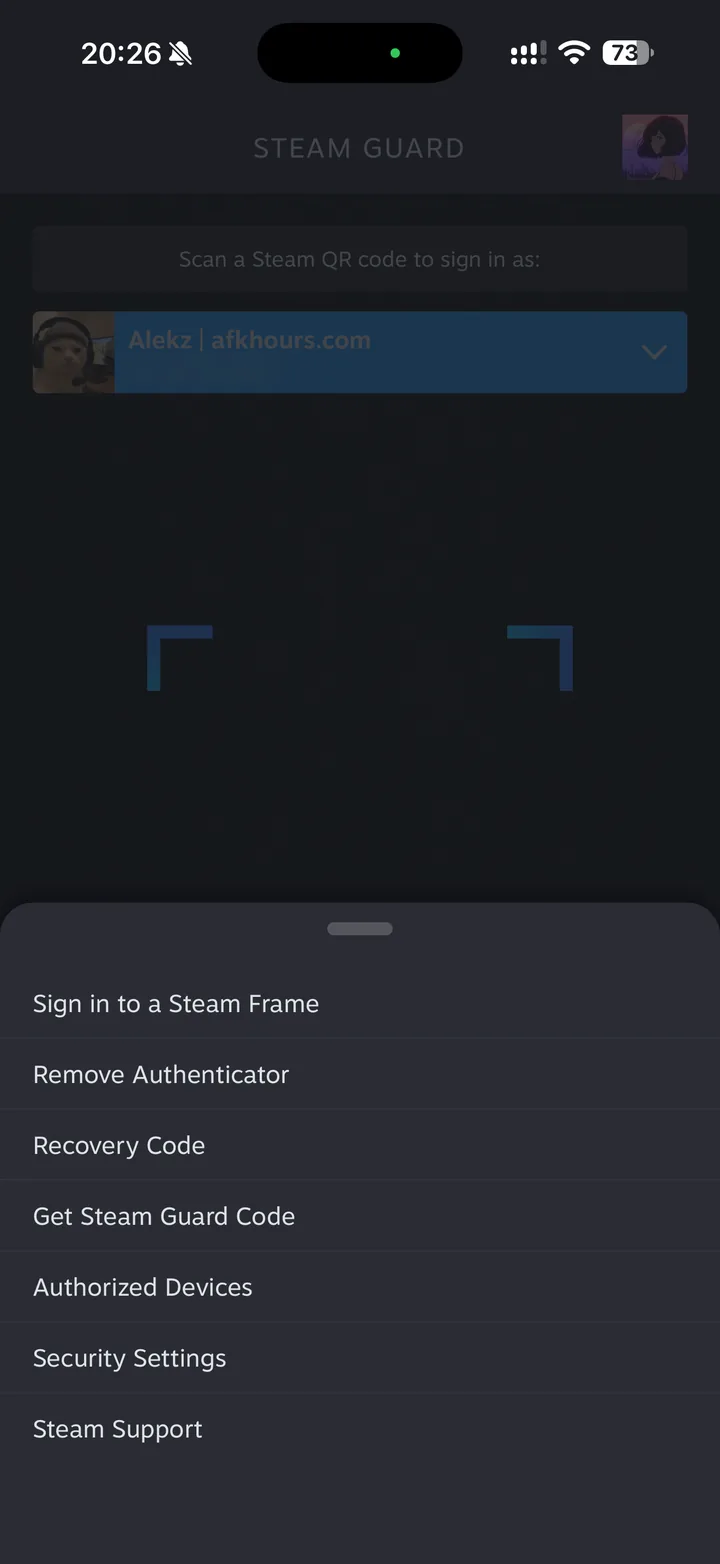
In the Steam app, tap the Steam Guard shield at the bottom, then the gear at the bottom right.
 2Get Steam Guard CodeHidden behind the gear
In the menu that slides up, tap “Get Steam Guard Code”.
 3Copy the code
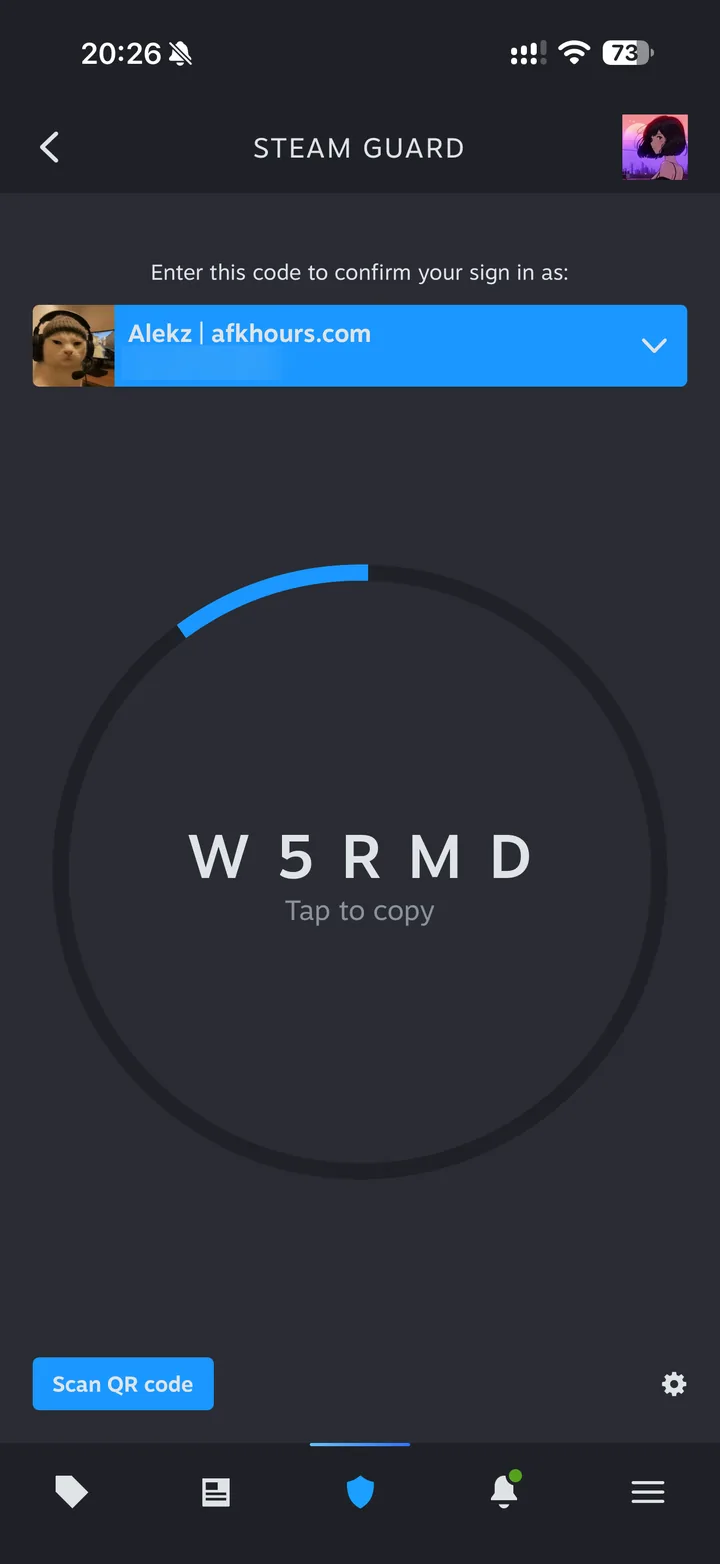
The five characters in the middle. “Tap to copy” copies them. The code changes every 30 seconds.
- 4Paste it on AFK Hours
In the window, fill in your login, your password and this code, then “Sign in”. A notification shows up anyway? Close it.
Without the Steam Guard app, Steam emails a code to your account's address.
- 1Login and password
In the AFK Hours window, type your Steam account name and password, then “Sign in”.
- 2Open Steam's email
It comes from noreply@steampowered.com as soon as you click. Check your spam folder too.
- 3Type the code
Copy it into the AFK Hours window. If you ask for a second one, only the newest works.
The screenshots come from a Steam app set to English. If yours is in another language, the buttons are in the same place.
Two ways, and which one to pick
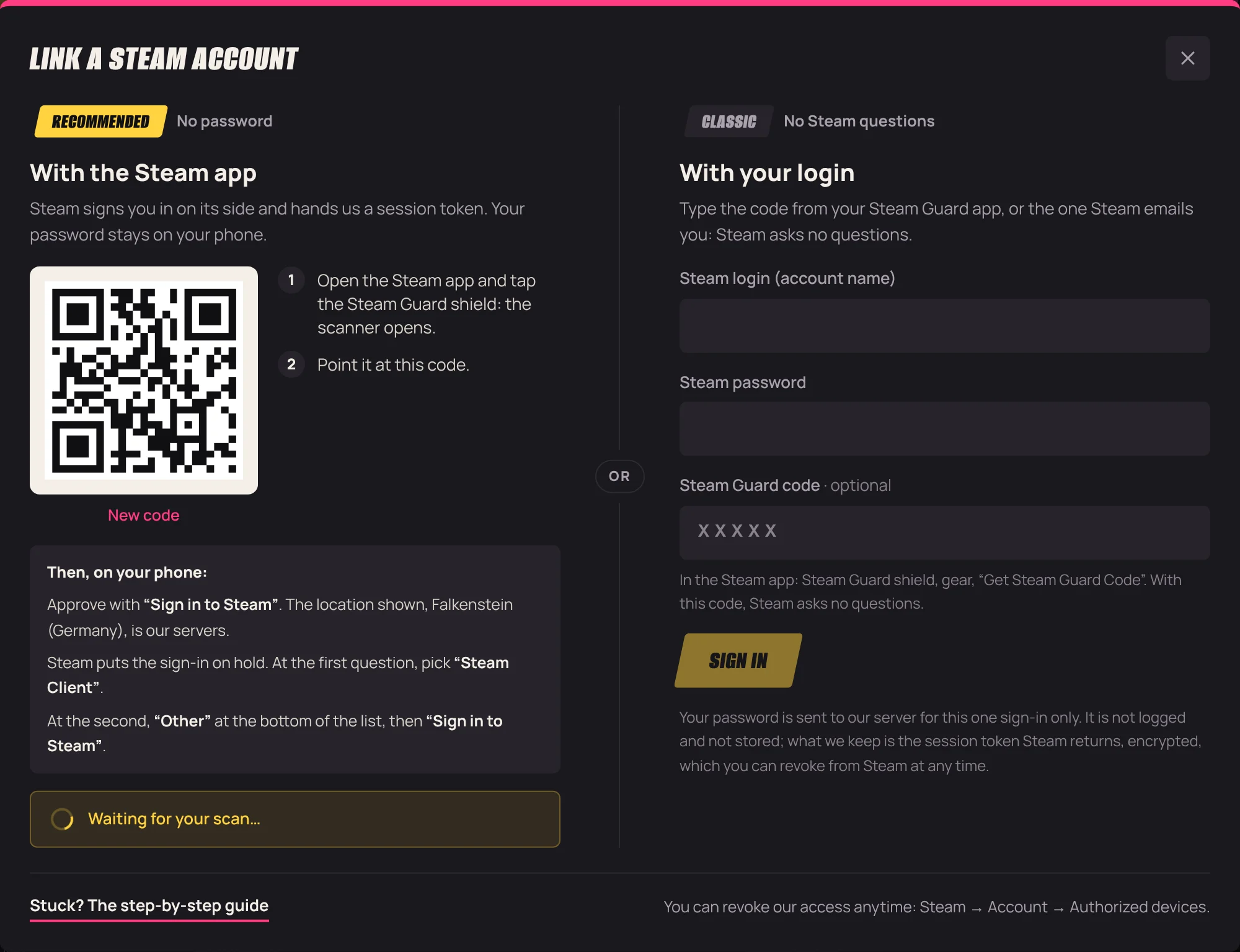
The QR code is the recommended way: you never type your password, Steam signs you in on its side and hands us a session token. You need the Steam app on your phone and another screen to show the code.
The login and password go through a form: handy on a phone, or without the app. The password is used for that one sign-in and is neither stored nor logged. With the code from the Steam Guard app typed into the form, Steam asks no questions.
Why Steam asks questions
Steam compares where a sign-in comes from with the places you usually use. A sign-in from a server in Germany looks like what a scammer would do, so Steam puts it on hold and asks where you are signing in and what you are trying to do.
Here the honest answer is “Steam Client”: our servers sign in the way the Steam client on a PC does. Then “Other”, because none of the other reasons (a trading site, a free skin, a false ban) fits. If anyone else asks you to scan a QR code for a trading site or a free skin, don't: that is exactly the scam these questions are there to stop.
What we keep, and how to cut access
We keep a session token, encrypted before it is stored, with the key only on the machine that idles. Never your password, never your Steam Guard codes.
You can cut access anytime from Steam → Account → Authorized devices. The account then asks for a new scan on AFK Hours.
Quick answers
- Steam shows “Unusual sign in attempt”.
- That is expected: the sign-in comes from our servers in Falkenstein, not from where you are. Answer “Steam Client”, then “Other”, then tap “Sign in to Steam”.
- The QR code expired.
- It only lasts a few minutes. Click “New code” in the window, then scan it straight away.
- Steam says the login or password is wrong.
- The login is the account name you sign in to Steam with, not the nickname shown on your profile.
- Steam's email never arrived.
- Check your spam folder and the address linked to your Steam account. If you asked for several codes, only the last one works.
Link your first account
The free plan is enough to try it on one account. Sign in, open “Add account” and follow the steps above.
More guides
- Safety · 6 min readIs Steam hour boosting safe? Bans, VAC and Steam's rules
- Hours · 7 min readHow to boost your Steam hours: five methods compared
- Cards · 6 min readHow to idle Steam games for trading cards
- Cards · 5 min readWhat are Steam trading cards used for? Badges, levels, money